Processing data using Microsoft Excel is easier for us to analyze the data, but sometimes we have difficulties when processing the data with the number of lines of more than 10,000 rows, or even more.

The difficulty that sometimes occurs when the data we have similar properties / duplications. I experienced this difficulty, at first I was confused about how to process such data, have you ever experienced it as well?

Do not worry, after looking for a way to remove duplication of data on Google, I get a tutorial from
mr.excel.com, and it turns out I managed to solve the problem.

Here are 5 methods to remove duplicates in Microsoft Excel. Excel 2007 offers new cool Ways to do this. The first three tips work in any version of Excel. The last two methods work only in Excel 2007.

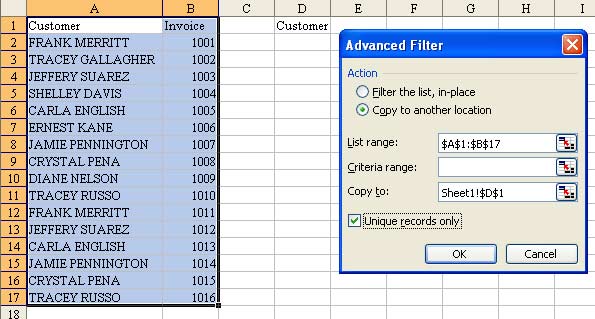
To the right of your data, copy the heading from the column where you want to find unique values.
2. Select a cell in your data set.
3. In Excel 97-2003, choose Data - Filter - Advanced Filter. In Excel 2007, choose the Advanced icon from the Sort & Filter group of the Data ribbon.
4. Choose Copy to another Location
5. In the Copy To box, specify the copy of your heading. In the Figure, this is cell D1
6. Click the box for Unique Records Only
7. Click OK
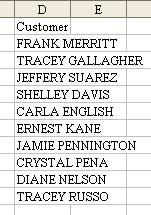
Excel will provide you a unique list of customers in column D.
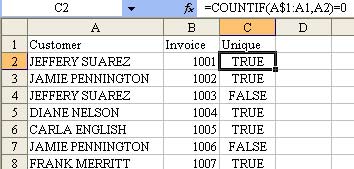
Method 2: Use a Formula to Determine if This Record is Unique
The COUNTIF function can count how many records above the current record match the current record. The trick to making this work is to use a single dollar sign in the reference. If you are entering a formula in C2 and you reference A$1:A1, this is saying, "Start from the absolute reference of A1 and go down to the record above the current record". When you copy this formula down, the first A$1 will stay the same. The second A1 will change. In Row 17, the formula in C2 will read: =COUNTIF(A$1:A16,A17)=0.
Once you have entered the formula in C2 and copied it down to all rows, you should copy C2:C15 and then use Edit - Paste Special Values to convert the formulas to values. You can now sort descending by column C and the unique values will be at the top of the list.
Method 3: Use a Pivot Table to get Unique Customers
A pivot table is great at finding unique values. This is the fastest way in Excel 2000-2003.
1. Select a cell in your data set.
2. Choose Data - Pivot Table and Pivot Chart Report.
3. Click Finish.
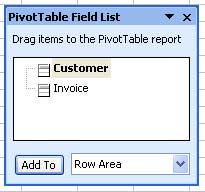
4. In the Pivot Table Field List, click on the Customer Field. Click the Add To button.
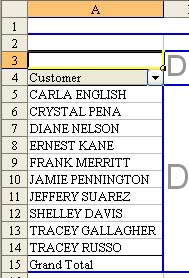
Excel will show you a unique list of customers.
Method 4: New in Excel 2007 - Use Conditional Formatting to Mark Duplicates
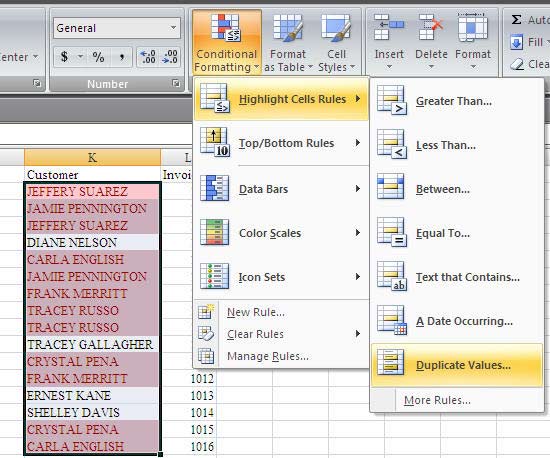
Excel 2007 offers new methods for finding duplicates. Select the range of customers. From the Home ribbon, choose Conditional Formatting - Highlight Cells Rules - Duplicate Values and click OK.
If a name is found twice, Excel will highlight both occurences of the name. You would then want to sort all of the highlighted cells to the top.
1. Click any field in the customer column. Click the AZ button in the Data ribbon.
2. Find a cell that has the red highlighting. Right click the cell. Choose Sort - Put Selected Cell Color on Top.
Method 5: New in Excel 2007 - Use Remove Duplicates icon
This method is highly destructive! Make a copy of your dataset before you do this!
1. Copy your range of data to a blank section of the worksheet
2. Select a cell in your data set.
3. From the Data ribbon, choose Remove Duplicates.
4. The Remove Duplicates dialog will give you a list of columns. Choose the columns which should be considered. For example, if you needed to remove records where both the customer and invoice were identical, check the box for both fields. In this case, you are trying to get a unique list of customers, so choose only the Customer field.
5. Click OK.
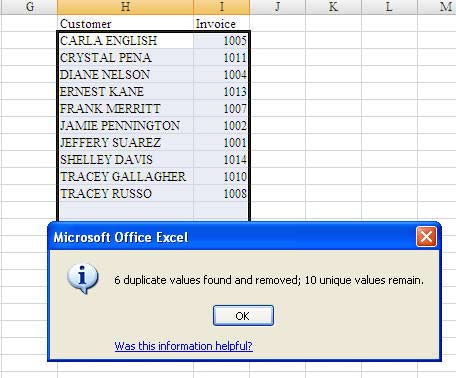
Excel will delete records from your dataset. It will report that n duplicates were removed and nn records remain.
As you can see, there are many methods for dealing with duplicates. Excel 2007 adds two new tools to your arsenal.





 Febby Indra on
  12:39 PM